
Camera scoreboard guide
Stand the phone, match the table, tap “Start match” — that's it. TiTi suggests each point; fix it by hand if it's wrong.
- Stand the phone sideways
- Match the table
- “Start match”
- Auto score
Start the camera scoreboardUpload a video
The app screens are in Korean for now, so button names are followed by the Korean label you will see.
1. Getting started
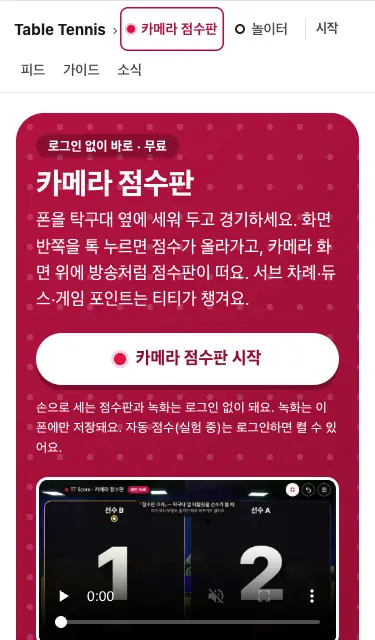
Tap “Start the camera scoreboard” (카메라 점수판 시작) at the top of the table tennis home (/tt). Scoring by hand and recording work without an account. Auto score needs you to sign up or sign in with Google (가입·로그인) — your first Google sign-in creates the account, and if you do it when you turn auto score on, you come back to the same match.
- Pick the match length (best of 3, 5 or 7) and nicknames, then tap “Turn on camera and start” (카메라 켜고 시작). Nicknames show in recordings, so avoid real names.
- When the browser asks for the camera, allow it. If you blocked it, allow the camera from the lock icon next to the address bar and tap “Try again” (다시 시도). Without a camera the scoreboard still works.
2. Stand the phone sideways
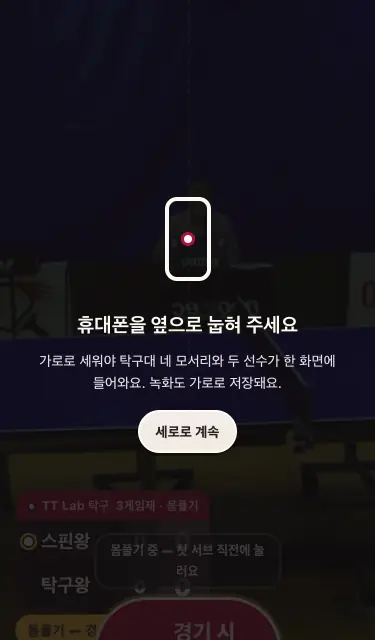
Lay the phone sideways beside the table, near the line of the net, so the four table corners and both players fit. In portrait you get a prompt — portrait makes the table small and auto score much less accurate (see the FAQ).
- With the selfie camera, players can watch the screen while they play. The selfie view is mirrored but TiTi gets the original picture.
- For placement details see the filming guide and the 3D filming simulator.
3. Match the table
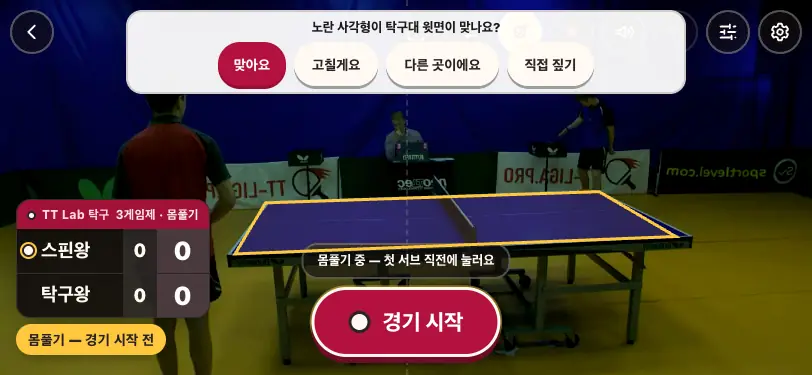
Tap “Auto score” (자동 점수) in the top bar, read the note, then “Find the table automatically · Turn on” (탁구대 자동으로 찾기 · 켜기). TiTi shows the table as a yellow box (about 3 seconds in our test). If it sits on the table top, tap “That's right” (맞아요).
- If it is slightly off, tap “Let me fix it” (고칠게요) and drag the corners; if it is somewhere else, tap “That's not it” (다른 곳이에요) and tap the table top once.
- Still no luck? “Mark it myself” (직접 짚기): tap the four corners, then each half of the table once (skip the halves when filming from the side).
- The table is remembered, and TiTi follows it if the phone moves a little.
4. “Start match”
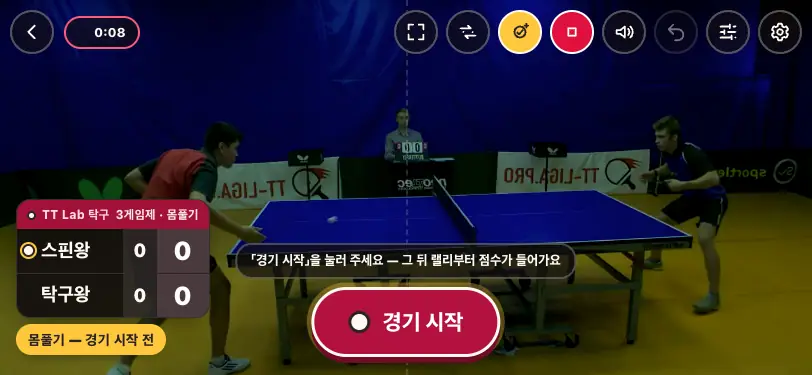
Warm up after the camera turns on. Tap the big “Start match” (경기 시작) right before the first serve — counting starts at 0:0 from there. Warm-up balls never count.
5. Auto score — just glance at the suggestion
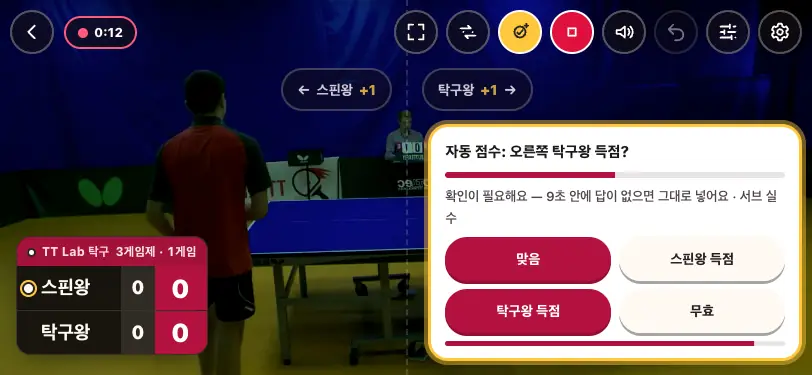
After each rally TiTi suggests who scored. A confident call goes in after 4 seconds; one marked “needs a check” (확인이 필요해요) after 9 seconds. If it's wrong, tap “Right · Point to … · Void” (맞음 · 득점 · 무효) before then, or tap the correct half of the screen.
- If the next rally's call arrives first, the earlier suggestion stays open — up to 2 calls queue up (the suggestion says “1 more call waiting”), and the next one appears once you answer or time runs out. If yet another call arrives, the oldest goes in as it is.
- Auto score runs up to 20 minutes at a time and 40 minutes a day (the screen tells you when you turn it on). When it runs out or drops, only auto score turns off; keep scoring by hand.
- Only while it's on, a small (512×288) copy of the camera view is sent; the server finds the ball and throws the picture away.
6. Fix by hand · Undo
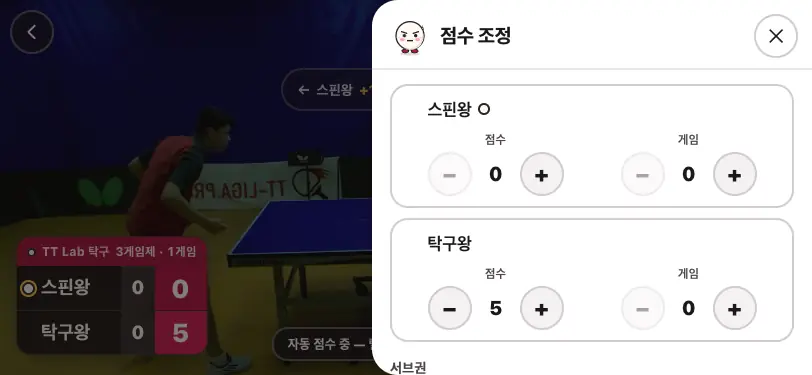
Tap anywhere on a half of the screen to give that side a point. Wrong tap? “Undo” (되돌리기) in the top bar. Noticed much later? Open “Adjust score” (점수 조정) to fix points, games and serve, or remove that one point from the history.
- Worried the ball will hit the screen? Set “Prevent mis-taps” (잘못 누름 막기) to double tap or long press.
- A Bluetooth selfie remote can be taught to score and undo in Settings → Remote.
7. Spoken score · Full screen · Big score
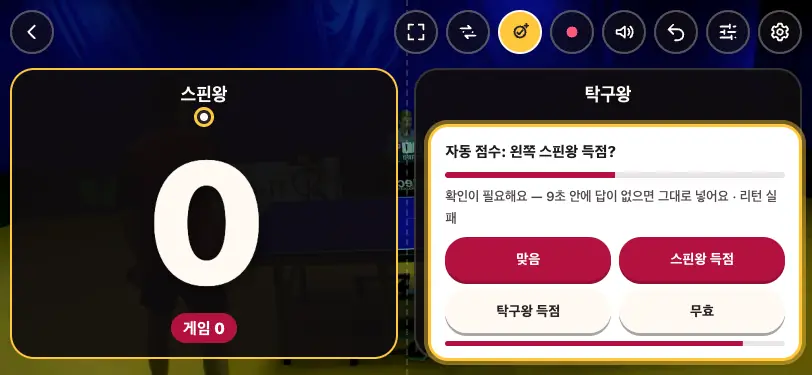
Turn on “Speak the score” (점수 말하기) to hear the score after each point, server first (“5–1, change of serve”). It's in the top bar in landscape and just below it on the right in portrait (also in Settings).
- “Full screen” (전체 화면) hides the address bar too; leave it with the same button.
- Settings → Scoreboard: “Big score only” (점수만 크게) for a tablet beside the table, plus size, position, opacity and what to show. Recordings use the scoreboard as shown.
8. Show the scoreboard on another screen
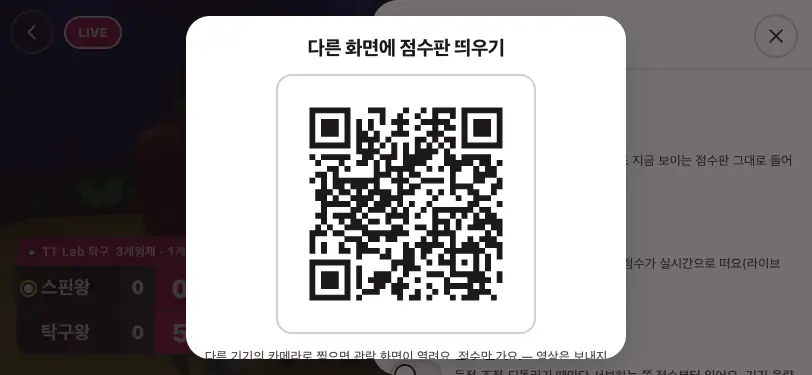
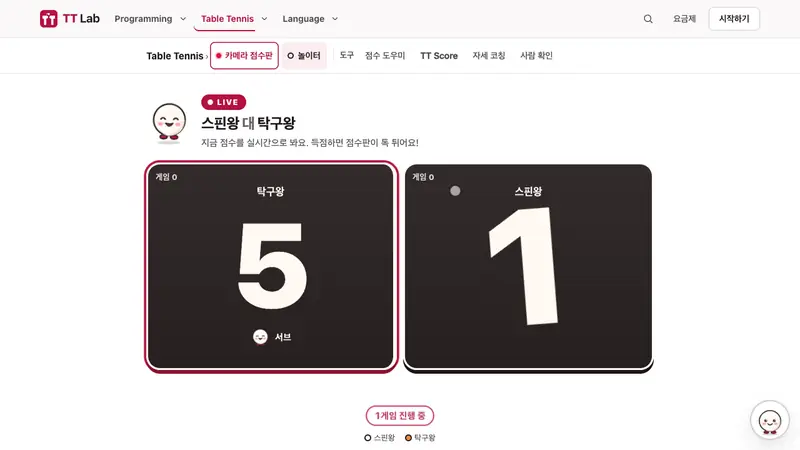
Settings → Scoreboard → “📺 Show the scoreboard on another screen” → “Go live and show QR”. Scan the QR with another phone, tablet or TV browser to open the watch page; the score updates live (about 1 second in our test). Only the score is sent — no video.
- The watch page needs no sign-in, so you can send the link to friends. Going live needs you to sign up or sign in with Google (가입·로그인).
9. Recording — an edit without the breaks
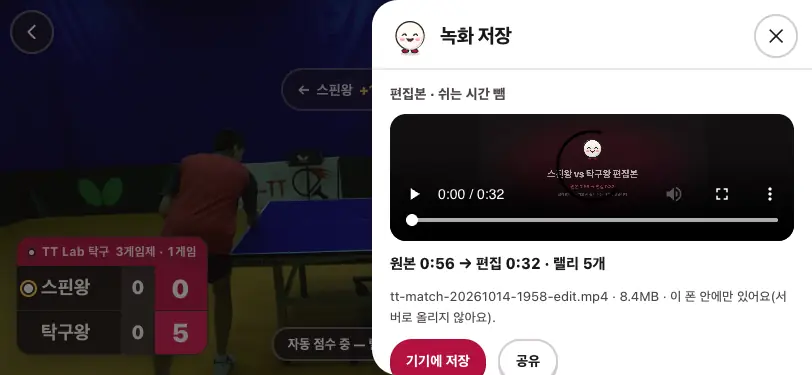
Tap the red “Start recording” (녹화 시작). When you stop, TiTi makes an edit with only the rallies plus the full video. In our test a 56-second recording became a 31–33-second edit (5 rallies) in under a second. Save it with “Save to device” (기기에 저장).
- Recordings stay on your phone. To get an edit and highlights from the server, agree to upload in “Make edit and highlights (server)” — see “If you already filmed a match”.
- Recordings fill phone memory, so save long matches game by game. Ask everyone in the video first.
10. Match over → save it
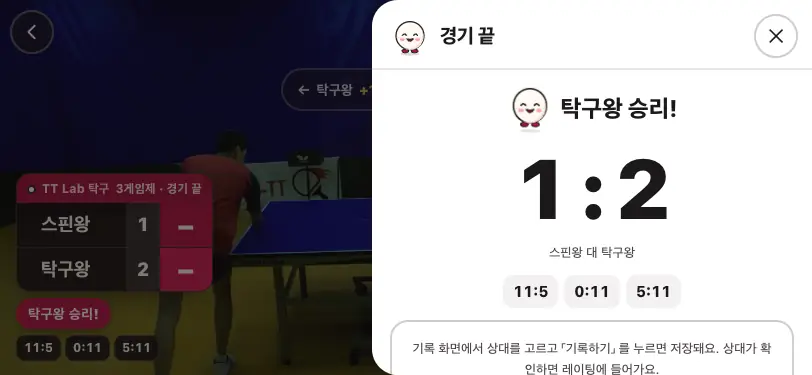
After the last point you see “Match over” (경기 끝). “Record this match” (이 경기 기록하기) opens the record form with the score filled in. Pick a TT Lab player or just type a name and tap “Record” (기록하기). It shows up under My table tennis → History → Matches.
- Only matches your opponent confirms count for rating; name-only matches stay in your own record.
11. If the connection drops
If the internet drops for a moment, auto score reconnects by itself (usually 1–2 seconds in our test, once 9 seconds) and resends the table and match start — no need to mark the table again.
Closing or reloading the page keeps the match on your phone. Open it again and tap “Continue” (이어서 하기).
If you already filmed a match — upload and analyze
Upload a match you filmed without the camera scoreboard and TiTi counts the score and makes an edit with a scoreboard and highlights. Sign-in required.
Filming
From the side, with the whole table in view, without shaking. Film at 60 fps if you can (30 fps misses fast balls). Videos up to 60 minutes.
Uploading
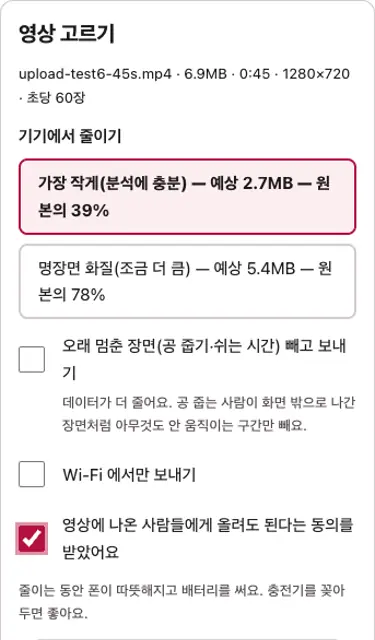
Pick the file in “Upload a match video” (경기 영상 올리기); your phone shrinks it before sending. The default “Smallest” is 360p, 60 fps, 500 kbps — about 3.6 MB a minute. In our test a 45-second video (6.9 MB) became 2.7 MB (39%). Tick the box confirming the people in it agreed.
- Keep the page open until it's sent; if it stops, “Resume upload” picks up where it left off. You can also choose “Wi-Fi only”.
- Up to 6 videos a day (the screen shows how many are left).
Showing the table
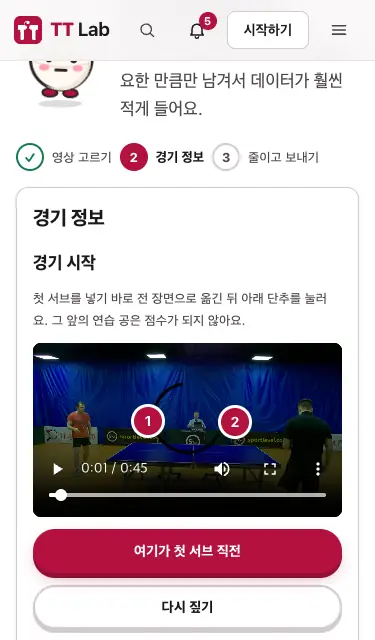
Move the video to just before the first serve and tap “This is right before the first serve”. Then mark the table on the video as the screen asks. Add player names (optional), match length and first server, then “Shrink and send”.
Waiting
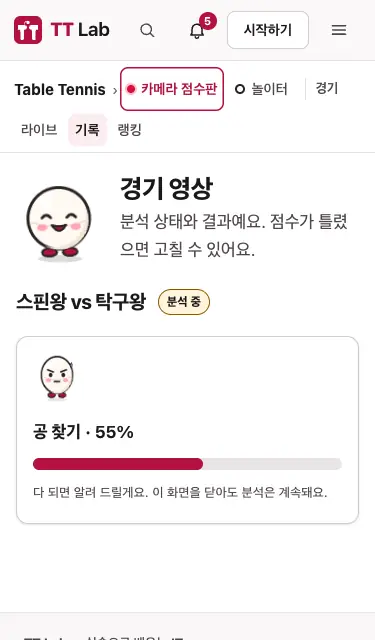
Your video joins the queue. The screen shows how many are ahead and the expected time; during analysis it shows the stage (finding the ball, counting the score, making the video) and progress. You can close the page — you'll get a notification when it's done.
- How long: not yet measured on the production server. In our test (the same analysis code on a laptop) a 45-second video took about 2 minutes.
Your result
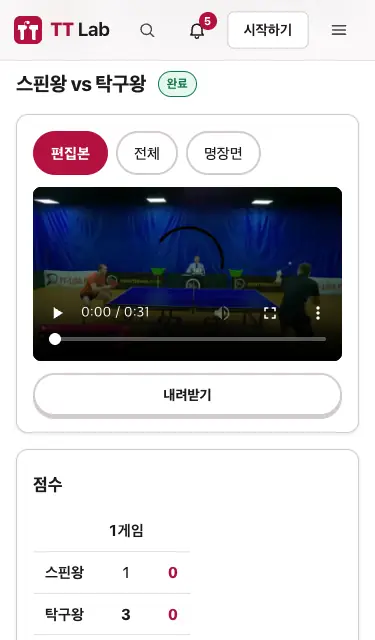
Watch the “Edit” (breaks cut), “Full” and “Highlights” tabs. Below are the score table, the highlights (tap to jump to that moment) and the rally list (time, point, reason, score after).
- Rallies marked “needs a check” are the ones TiTi was unsure about.
Checking wrong calls
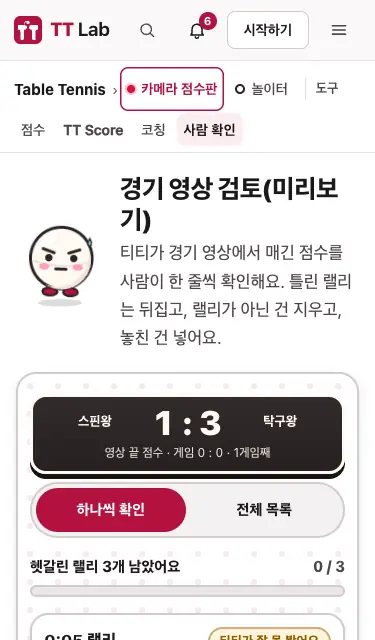
“Fix the score” (점수 고치기) shows the unsure rallies one card at a time: “Right · Point · Void”. Then fix anything else in the full list.
- Your fixes stay in this browser for now (redrawing the video is the next step).
Share · Download · Delete
“Share with a link” creates a link anyone can open without signing in; “Share” sends it to KakaoTalk, Instagram and more. Turning it off blocks the link at once.
“Download” (내려받기) under the video saves the selected tab (edit, full or highlights) to your phone.
“Delete” removes the video and the result for good.
FAQ
Why is the score different from the real one?
Auto score is an experimental draft. On 12 public match videos filmed from the side (275 rallies) it got the rally winner right about 9 times in 10 (247–258), but it can still read a hit as a bounce or mix up the side near the net. Unsure calls are marked “needs a check” — glance at those. One wrong rally shifts the later score, so fix it with “Adjust score” or “Fix the score”.
What does “needs a check” mean?
TiTi wasn't sure. The camera scoreboard waits 9 seconds for your answer and then accepts it; video analysis marks it in the rally list and the review screen shows it card by card. We keep confidence conservative so mistakes aren't hidden — even side-view videos get it on roughly 4 in 10 calls.
Which videos work, and which don't?
Works: from the side, whole table and both players in view, phone fixed, 60 fps. Small shakes and moves are followed. Doesn't: portrait video (89 of 275 rally winners right), part of the table off screen (99), green or black tables (automatic finding struggles — tap the table once), views from above or at an angle (not measured). Club lighting and phone videos have no answer data yet, so accuracy there is not measured.
What happens to my video and privacy?
Camera scoreboard video and recordings never leave your phone, except what you turn on: auto score (a small copy, not stored) and live (score only). Uploaded videos are visible only to you, and to others only through a link you turned on. Uploaded originals are deleted after 30 days and the result stays — “Delete” removes everything. Please ask everyone in the video first.
Start the camera scoreboardUpload a video
Where the numbers come from: TT Lab's TT Score measurements (public match videos) and an end-to-end test on 2026-10-14. “Not measured” means we have not measured it yet. Screens may change — last updated 2026-10-14.
Match footage in the pictures: OpenTTGames (CC BY-NC-SA 4.0). Player names are test nicknames.