
Why df and du Give Different Answers
In one line
df asks the filesystem, while du walks the directories and counts. So a file with no name is caught by df but not by du.
Why you need this
Logs ate all the disk, so you deleted a big file with rm, but the free space in df has not grown by a single byte. Everyone goes through this once and is baffled once.
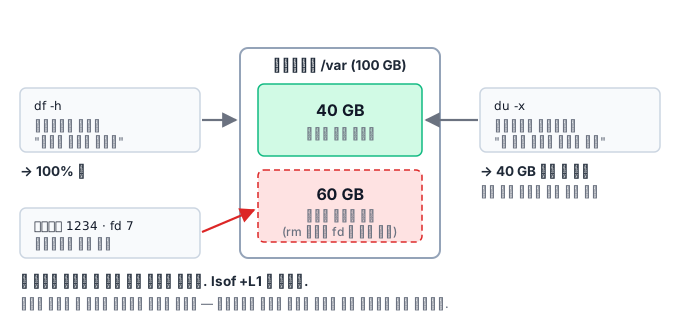
If you conclude "rm didn't work" here, that night gets long. What actually happened is this. rm is not a command that deletes a file; it is a command that detaches one name from a directory (unlink). For the data blocks to be returned, two conditions must hold at the same time.
- No name remains pointing at that underlying object, and
- No process has it open, either.
If the application that was writing the log still has that file open, the second condition fails. The name is gone but the data is alive, and because du counts by walking paths, it can never find that nameless file. The moment df and du disagree is the signal for exactly this situation.
How it works
The order for narrowing down a capacity problem is this.
df -h                                    # 블록 사용량
df -i                                    # inode 사용량 (이게 100% 일 수도 있다)
du -x -h --max-depth=1 / | sort -h       # 어느 디렉터리가 큰가 (-x: 다른 fs 로 안 넘어감)
lsof +L1                                 # 삭제됐지만 열려 있는 파일
ls -l /proc/<PID>/fd | grep deleted
find / -xdev -size +500M -printf '%s %p\n' | sort -rn | head
Each tool answers a different question.
| Tool | Question | What it misses |
|---|---|---|
df |
How much is left on the filesystem | Where the space went |
df -i |
How many inodes are left | Block usage |
du |
How big is everything under this path | Nameless files, other filesystems |
lsof +L1 |
Are there files that were deleted but are still open | Ones already closed |
du has two more traps.
- Hard links are counted only once. If several names point to the same inode, du counts only the first one it meets. When measuring the size of a generational backup directory, this property makes the value come out smaller than expected.
- Sparse files are counted only by actual usage. If you pass
--apparent-size, you get the logical size. The difference between the two values is exactly the sparse region.
Recovering a deleted open file
If a process still has it open, a symlink to that file is still alive under /proc/PID/fd.
ls -l /proc/1234/fd | grep deleted
cp /proc/1234/fd/7 /backup/recovered.log
The order matters most here. The moment you restart the process, the last reference disappears, the blocks are returned, and the chance of recovery is gone completely. Even when capacity is urgent, your first action must be copying, not restarting.
If you need to reclaim space urgently, you can empty the file with > /proc/1234/fd/7. For a log file, this method gives the space back while keeping the process alive.
Quickly narrowing down what takes how much
A capacity problem is a fight against time. Instead of sweeping the whole thing, if you cut it in half from the top and work down, the culprit usually turns up in three or four rounds.
du -xh --max-depth=1 / 2>/dev/null | sort -rh | head
-x makes it not cross into other filesystems. If you leave it out, it takes long counting /proc,
/sys, and even network mounts, and the numbers are wrong too. Go down one level at a time with --max-depth=1,
repeatedly cd-ing into the biggest directory.
First separate whether it is a few big files or millions of small files. The prescriptions differ.
find /var -xdev -type f -size +100M -printf '%s\t%p\n' | sort -rn | head
find /var -xdev -type f | wc -l
If the first one gives the answer, delete or move those files and you are done. If the number from the second is in the millions, inodes and directory traversal are the problem, so the deleting itself takes a long time.
Delete from the oldest. If you pass rm too many arguments, you get Argument list too long,
so use -delete or xargs.
find /var/log/app -xdev -type f -name '*.log' -mtime +14 -delete
find /var/cache/thumbs -xdev -type f -mtime +30 -print0 | xargs -0 -r rm -f
Before deleting, look at what is using it. If you delete a file that some process keeps writing to, the capacity does not come back and only that process turns strange (the "deleted but still open file" from the previous module).
lsof -nP +D /var/log/app 2>/dev/null | head
Make sure the same thing does not repeat. If you clean up once and stop, it will surely fill up again.
Leave logs to logrotate (copytruncate is a safeguard that deals with open fds),
and on a container host, look at images, volumes, and build cache separately with docker system df
and clean up by a period set with --filter until=. It is better to set alerts on the rate of growth, not on 90%.
If it is filling by 5% a day, you can tell when two days from now will be, and then
you do not have to be woken up at dawn.
What it looks like in the field
Inode exhaustion. When session files or a mail queue create millions of small files, the inodes run out first even though blocks remain. If you do not look at df -i, you cannot find the cause. And since ext4 cannot add inodes after formatting, the fundamental fix is reformatting or moving that workload to another filesystem (XFS allocates dynamically).
du takes long and incident response gets delayed. With millions of files, du takes minutes. When you are in a hurry, narrowing down from the top with du --max-depth=1 is faster.
What you will do in the next lab
You generate a large number of small files to observe inode consumption, compare the two kinds of size of a sparse file, and create a file that was deleted but is still open yourself to reproduce the disagreement between df and du.