
Three Layers: Device, Filesystem, Mount
In one line
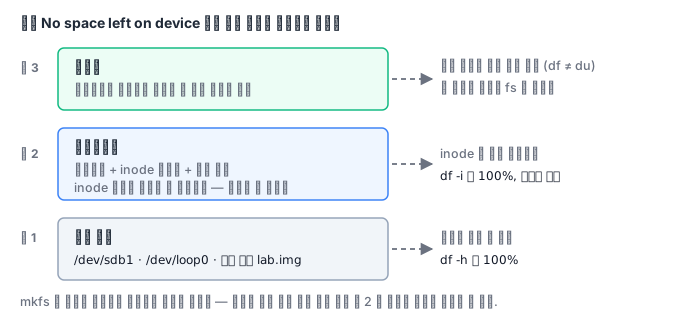
A block device is an array of bytes, a filesystem is a data structure laid on top of that array, and a mount is the act of attaching that data structure to the directory tree. The three are completely separate things.
Why you need this
The single sentence "the disk is full" mixes together at least four different problems.
- The blocks really are all used up (
df -hshows 100%) - The inodes ran out first (
df -ishows 100% while blocks remain) - Someone has a deleted file open, so the space is not returned (
dfanddudisagree) - The path is not the filesystem you expected in the first place (the mount did not happen)
The four have completely different causes and responses. Yet the symptom is the same, No space left on device. You have to tell the three layers apart to separate these four.
How it works
Layer 1 — the block device
These are things like /dev/sda, /dev/nvme0n1p1, and the loop device /dev/loop0. To the kernel, it is simply a byte array you can read and write.
One important fact here. You can create a filesystem not only on a block device but also on an ordinary file. mkfs.ext4 does not care whether the target is a device or a file. It just writes the defined structure starting from the beginning of the target. Thanks to this property, you can learn the internals of a filesystem without privileges.
truncate -s 256M /root/disk/lab.img     # 희소 파일 — 실제 점유는 0
mkfs.ext4 -F -L LABHUB /root/disk/lab.img
blkid /root/disk/lab.img
dumpe2fs -h /root/disk/lab.img
debugfs -R 'ls -l /' /root/disk/lab.img
A file created with truncate is a sparse file. Its logical size is 256MB, but its actual disk usage is almost 0. You can confirm this from the difference between the values of du --apparent-size and du.
Layer 2 — the filesystem
What mkfs creates is a superblock + inode table + block groups. If you read the superblock with dumpe2fs -h, values like these come out.
| Item | Meaning | Why it matters |
|---|---|---|
| Block size | The size of one block (usually 4096) | Internal fragmentation if there are many small files |
| Inode count | The number of inodes, fixed at format time | ext4 cannot grow it later |
| Reserved block count | Blocks reserved for root only | 5% by default, wasteful on large data disks |
| Filesystem UUID | The unique ID of this filesystem | Used in fstab instead of the device name |
The number of inodes is decided when you format and cannot be increased later. So when session files or a mail queue create millions of small files, the inodes run out first even though blocks remain. This is why you have to set capacity alerts on both df -h and df -i.
Reserved blocks are also a practical point. The default 5% is reasonable on a root filesystem (it leaves room for root to write logs), but on an 8TB data disk it means idling 400GB. Lower it with tune2fs -m 1.
Layer 3 — the mount
A mount attaches a filesystem to one point in the directory tree. You have to distinguish two things here.
- Device names (
/dev/sdb1) are unstable. If you add a disk or the boot order changes, sdb becomes sdc. That is why you use a UUID or LABEL in fstab. - Files that were originally in the mount point directory are only hidden, not gone. When you unmount, they show up again. A report that "the data disappeared" is sometimes actually "a new filesystem was mounted over it."
What you must do after attaching a disk
The procedure for attaching a new disk and mounting it is short, but there are items that, if you skip them, show up at reboot.
Write the UUID, not the name. /dev/sdb changes with the device order.
If you attach one more disk or the order changes, that line in /etc/fstab ends up
pointing at a different disk, and in the worst case the boot hangs.
blkid /dev/sdb1
# UUID="..." TYPE="ext4"
Decide whether to put nofail in fstab. Without it, if that disk does not attach, the boot
drops into the emergency shell. For a data disk, it is better to put in nofail so the system
comes up and to raise an alert instead, and if the service is meaningless without that disk,
leaving it out is right.
Test that it mounts before you rely on it. Rebooting to find out is the most expensive method.
mount -a          # fstab 대로 전부 붙여 본다. 오류가 나면 여기서 난다
findmnt --verify  # 문법과 대상까지 검사한다
Look at alignment and reserved blocks. ext4 reserves 5% for root by default, which on a 1TB data disk means idling 50GB. If it is data-only, you may reduce it.
tune2fs -m 1 /dev/sdb1
Growing takes two steps. Even if you enlarge the volume in the cloud, the filesystem stays the same.
You extend the partition (growpart), and then extend the filesystem (resize2fs or
xfs_growfs). You can grow it while it is mounted, but you usually cannot shrink it —
XFS does not support shrinking at all. So it is safer to start small
and grow than to size it large at the start.
Decide now whether to use LVM. Changing later means moving the data. If you plan to add disks or need snapshots, build on LVM from the start.
What it looks like in the field
The incident where a failed mount fills the root. It was designed to mount a separate disk at /var/lib/postgresql, but the fstab entry was wrong and the mount did not happen. The database starts writing data to the root filesystem without a word of complaint. A few days later the root hits 100% and the whole system stops. That is why some teams put a marker file such as .not-mounted in the mount point directory and have the application check for it.
What you will do in the next lab
You create a real ext4 on a file, extract the UUID, read the superblock, change the reserved ratio with tune2fs, and look inside with debugfs. At the end, you write the fstab line that mounts that image, using the UUID.