
Why docker stop Takes a Whole Ten Seconds
One-line summary
A container's first process is PID 1, and the Linux kernel treats PID 1 differently. The 10-second wait of docker stop, Ctrl+C not working, and zombie processes piling up all come from here.
Why this is needed
After adding docker stop to a deployment script, it takes exactly 10 seconds per container. With 20 containers that is 200 seconds. There is no error in the logs; it is just slow.
The cause is this. docker stop first sends SIGTERM, waits, and if the process does not die, sends SIGKILL. The default for that "waiting" time is 10 seconds. So taking 10 seconds means the process received SIGTERM and still did not die.
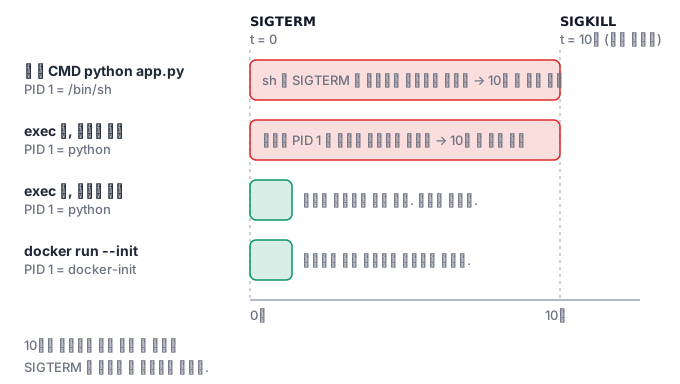
Why did it not die? For an ordinary process, if it has not registered a signal handler, the kernel performs the default action (termination) on its behalf. But PID 1 does not have that default action. The kernel assumes PID 1 is init and simply discards signals for which no handler is registered. If the last process of the system died by accident, it would be a kernel panic, so this is a protection mechanism.
So if the Python started with CMD ["python", "app.py"] has not registered a SIGTERM handler, that container ignores SIGTERM. After 10 seconds it is forcibly killed with SIGKILL. Open connections and half-written files are cut off just as they are.
How it works
The second trap is the shell form.
CMD python app.py          # 셸 폼 → /bin/sh -c "python app.py"
CMD ["python", "app.py"]   # exec 폼 → python 이 직접 PID 1
If you use the shell form, PID 1 is not Python but /bin/sh. Even when sh receives SIGTERM, it does not forward it to its child. The application never even sees the signal.
| Situation | PID 1 | SIGTERM result |
|---|---|---|
Shell form CMD python app.py |
/bin/sh |
Not delivered to the app → KILL after 10 seconds |
| Exec form, no handler | python |
Discarded by the kernel → KILL after 10 seconds |
| Exec form, with handler | python |
Clean shutdown immediately ✅ |
Using --init |
docker-init |
Delivered + zombies reaped ✅ |
The third is zombies. When a child process dies, the parent must collect its exit status with wait() before it disappears from the process table. If the parent does not collect it, it stays as a zombie. This cleanup is originally init's job, but if the container's PID 1 is an application, that app does not reap zombies. A process count that grows over several days in a container that keeps running shell scripts is usually this.
--init solves these two problems at once by inserting a very small init process as PID 1.
exec and attach are different
docker exec |
docker attach |
|
|---|---|---|
| What it does | Runs a new process inside the container | Connects to the standard input and output of PID 1 |
| When you leave | Only that process ends | Pressing Ctrl+C kills the container |
| Use | Debugging, checking files | Directly watching the output of the original process |
A great many people have attached to a running container with attach, habitually pressed Ctrl+C, and taken the service down. When you connect, use exec.
What it looks like in the field
- Deployments are slow →
docker stoptakes 10 seconds every time. The app is not catching SIGTERM. - Requests get cut off → Because it dies with SIGKILL, in-flight requests are cut off without a response. The symptom is the same as dying before being removed from the load balancer, which makes it confusing.
- Processes pile up →
psshows more and more<defunct>entries. Nothing is reaping zombies.
How to look inside a container you cannot enter
docker exec -it ... sh works only when a shell exists. An image built from distroless or scratch has neither a shell nor ps. You can still look inside — because namespaces can also be inspected from the outside.
Just look at that process from the host. The container's PID 1 is also a single process on the host. Only the namespaces differ.
pid=$(docker inspect -f '{{.State.Pid}}' myapp)
ps -p $pid -o pid,ppid,rss,etime,args
ls -l /proc/$pid/fd            # 열린 파일과 소켓
cat /proc/$pid/limits          # ulimit
cat /proc/$pid/cgroup          # 어느 cgroup 에 매였는지
You can read the filesystem without mounting it. /proc/<pid>/root is the root that the process sees. You can read files inside the container with the host's tools.
cat /proc/$pid/root/etc/app/config.yml
You carry the tools in from outside. nsenter attaches to the namespaces you specify and runs a command. The tool does not have to be in the image.
sudo nsenter -t $pid -n ss -tlnp      # 그 컨테이너의 네트워크에서 포트를 본다
sudo nsenter -t $pid -m ls /tmp       # 그 컨테이너의 마운트에서 파일을 본다
In Kubernetes, an ephemeral container does the same job. You attach a container with tools to the target Pod and have it share the process namespace.
kubectl debug -it pod/myapp --image=nicolaka/netshoot --target=app
If you leave out --target, the processes are not visible. In that case the new container shares only the network and has its own PID namespace. To see the processes, always specify the target.
The reason logs do not appear is usually a buffer. When an application writes stdout to a pipe, libc switches to block buffering, so nothing comes out until 4 KB has accumulated. For Python, use PYTHONUNBUFFERED=1; for ordinary commands, use stdbuf -oL to switch to line buffering. "Logs are not being printed" is often really "they have not come out yet".
What to look for in the next check
In the quiz that follows, based on what you observed in the previous lab, you will distinguish PID 1 signal delivery, zombie reaping, and the conditions under which docker stop kills by force. Answer by citing how the difference between the exec form and the shell form showed up in shutdown time and in the process tree.